
App permissions are almost like an invisible sentry, governing what type of data and device access your apps get. If you’ve ever downloaded a new app or activated a new feature, the chances are you will have been presented with a permissions prompt. But how many of us have absent-mindedly clicked “allow” without thinking?
Some permissions are appropriate for the app. But some may (intentionally or not) push the boundaries of what’s strictly necessary. And others could be outright malicious. It’s important to understand which to wave through and which to block.
What’s the deal with app permissions?
An app permission pop-up is essentially a dialog between your mobile OS and yourself. It’s effectively telling you that a new application has requested to access certain data or features. And it’s asking your approval (permission) for the app to do so. These requests used to come pre-installation. But modern iOS versions surface permissions prompts at runtime, when you first start using the app. Android does both, popping up install-time prompts only for low-risk permissions.
Since Android 6.0, permissions fall into two categories: normal permissions, such as internet access, which are granted silently at install time with no user prompt, and dangerous permissions, such as location, microphone, or contacts, which must be explicitly approved by the user at runtime ( when you first attempt to use the relevant feature). Newer versions have also introduced additional permissions, such as background location and notifications, that may require separate or multi-step consent flows. iOS surfaces all sensitive permissions at runtime in a similar way.
For developers, permissions are a critical way to deliver seamless, feature-rich experiences to users. If an app had to request access to device data/functions each time it used them, it would be almost unusable.
Both iOS and Android have introduced meaningful built-in protections in recent years that mitigate the risks associated with granting excessive privileges to apps. However, the final decision usually rests with you.
The dangers of app permissions
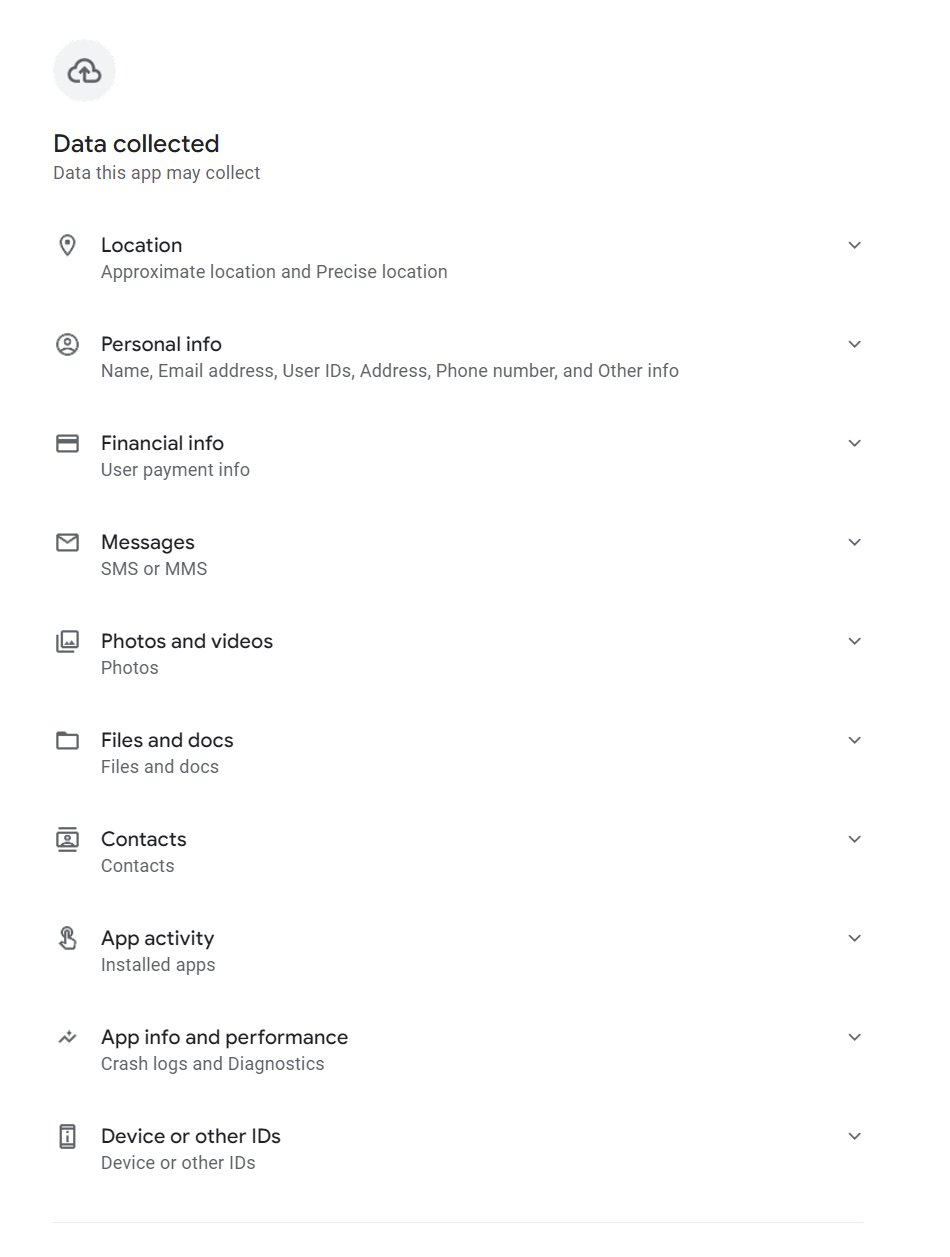
Whether maliciously or otherwise, some apps ask for more access than they need. Think of a mobile game asking for access to your contacts, or a calculator app requesting permission to access your mic and camera, for example.
By approving permissions without taking time to think about it, you might enable malicious developers to access sensitive smartphone data (calendar, messaging apps, SMS, files and storage, contacts, call logs, location, mic and camera etc). They could theoretically even read your screen as you type. With this access they could:
Harvest passwords to your most sensitive accounts (e.g., online banking)
- Intercept one-time SMS passcodes
- Enrol your device in premium-rate subscription services
- Build up a picture of your digital life to sell to advertisers
- Put your physical safety at risk by monitoring your location
- Switch on camera/mic to turn your smartphone into a bugging device
- Encrypt your files and hold them to ransom
- Instal malware on your device (e.g., infostealers, ransomware)
AI assistant apps (not to mention apps masquerading as such) represent a growing permissions risk worth singling out. Many request always-on microphone access for wake-word detection, as well as contacts, calendar, and in some cases screen content. Treat AI apps with the same scrutiny as any other category. Health and fitness data is another underappreciated exposure. Apps with access to your health metrics can share or sell that data in ways with real-world consequences, including implications for insurance and data brokerage.
Which app permissions should ring alarm bells?
App permissions depend on context. What one app requests to deliver the experience users expect may be very different to the permissions another needs. However, there are certain permissions that should always raise some red flags. They include:
- Accessibility services: Also known as “God mode,” this could allow malicious developers to see what you type, read your messages and covertly grant itself other permissions without you knowing. (Note, this isn’t natively available on iOS. New Android OS versions will not allow apps installed outside of the Play Store to request this permission. And they will check every few weeks whether you want to continue granting this permission.)
- Background location: This could enable a malicious actor to track your device everywhere you go, to build a detailed picture of your daily life. (Note: to mitigate this risk, Android and iOS won’t enable you to “always allow” up front, and they will periodically ask you to confirm you want to maintain “always allow” tracking).
- SMS/call logs: Few apps actually need access to your text messages and call history. By doing so, a hacker could read your one-time passcodes and hijack your accounts. (Note: For an app to ask for these permissions on Android, it must first be registered as the Default App for that function. iOS doesn’t allow any apps downloaded from the App Store to request permission to "Read SMS" or "See Call History.")
- Overlay permission: Allows an app to draw a “window” on top of another app you might be using, which could enable “clickjacking” attacks. (Note: Android requires users to explicitly enable this via Settings > Apps > Special App Access > Appear on top. iOS does not have a similar permission).
Managing app permissions safely
Before allowing or blocking, always consider if a permission is necessary for the app in question to do its job.
Another good rule of thumb is to only “allow once” or “while using.” Only safety apps like “Find My” should really have access 24/7/365.
You should be asked to review your permissions regularly with many apps. But it may be a good idea to proactively audit permissions. Here’s how:
iOS
- Go to Settings > Privacy & Security.
- Scroll to the bottom and tap (or turn on) App Privacy Report.
- This shows you which apps accessed your data and when.
Alternatively:
- Go to Settings > Apps.
- Select a specific app (e.g., Instagram).
- You will see a list of all toggles (Camera, Mic, Contacts). Turn off anything that isn't essential.
Android
- Go to Settings > Security & Privacy > Privacy > Privacy Dashboard.
- Tap on 7-Day View (top right menu) to see a timeline of every app that used your sensors over the last week. (These steps may not be the same across all Android-powered devices, so do check.)
- If you see an app using the microphone at 3:00 AM, tap it to revoke access immediately.
Alternatively (navigation paths still vary across Android skins):
- Go to Settings > Apps > [App Name].
- Ensure "Manage app if unused" (or "Pause app activity if unused") is toggled ON.
- If you don't use the app for a few months, Android will automatically strip its permissions, delete temporary files, and stop notifications.
Above all, only ever download apps from legitimate stores (Google Play/App Store). Read their reviews first before deciding whether to do so. Consider installing a mobile security solution from a reputable security provider.
Stay safe!